Automated Order Tracking Emails for Shopify and WooCommerce: Setup Guide

"Where is my order?" — this single question accounts for 40-50% of all customer support tickets for e-commerce stores. Automated order tracking emails solve this problem at scale, keeping customers informed at every stage of their order journey while freeing your support team for higher-value conversations. This guide walks you through setting up automated tracking emails in both Shopify and WooCommerce — from basic configuration to advanced personalization strategies.
01Why Automated Order Tracking Matters
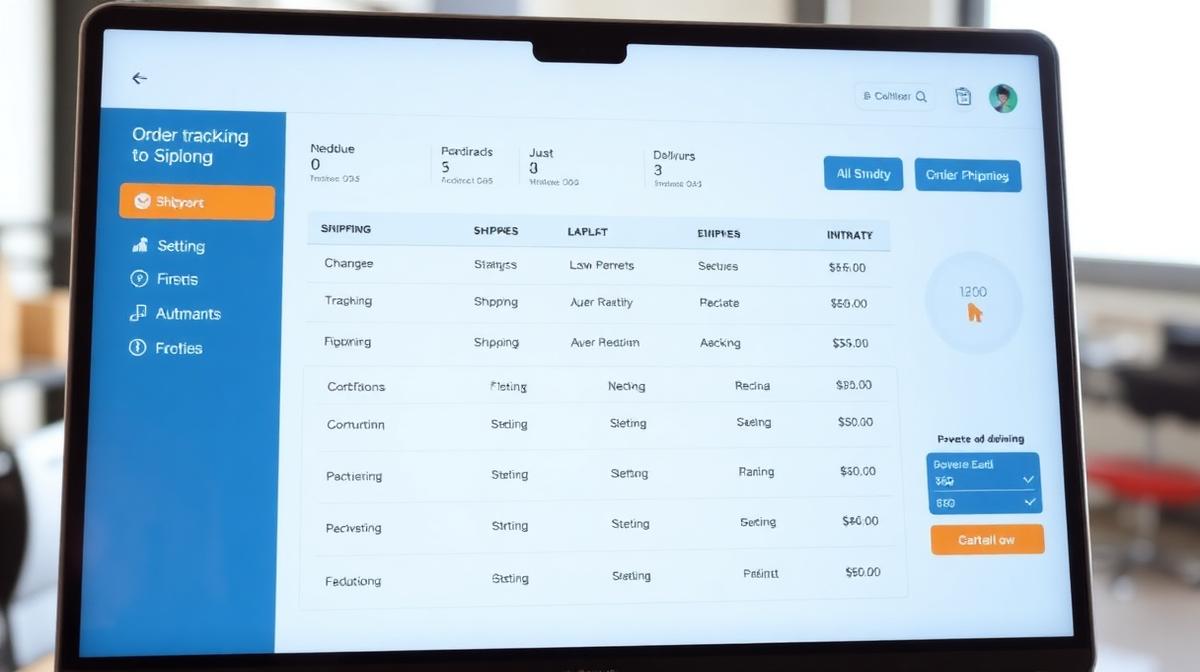
The post-purchase experience is where customer loyalty is built or destroyed. Here's what the data shows:
| Metric | Without Tracking Emails | With Tracking Emails | Impact |
|---|---|---|---|
| Support tickets ("WISMO") | 40-50% of all tickets | 10-15% of all tickets | –70% ticket volume |
| Customer satisfaction | 65-75% | 85-95% | +20-30% CSAT |
| Repeat purchase rate | 20-25% | 30-40% | +40-60% retention |
| Email open rate | N/A | 65-85% | Highest-engaged email type |
| Brand perception | Uncertain, anxious | Professional, trustworthy | Stronger brand loyalty |
The Order Communication Timeline
Customers expect communication at these key moments:
- Order confirmation: Immediately after purchase — "We've received your order."
- Payment confirmed: For orders with delayed payment processing.
- Order processing: "We're preparing your order" — especially important for made-to-order items.
- Shipped/dispatched: With tracking number and carrier link — the most critical email.
- In transit updates: "Your package has left the warehouse" / "Out for delivery."
- Delivered: Confirmation with a CTA for reviews or repeat purchases.
- Follow-up: 3-7 days after delivery — "How's your order?" with review request.
02Setting Up in Shopify
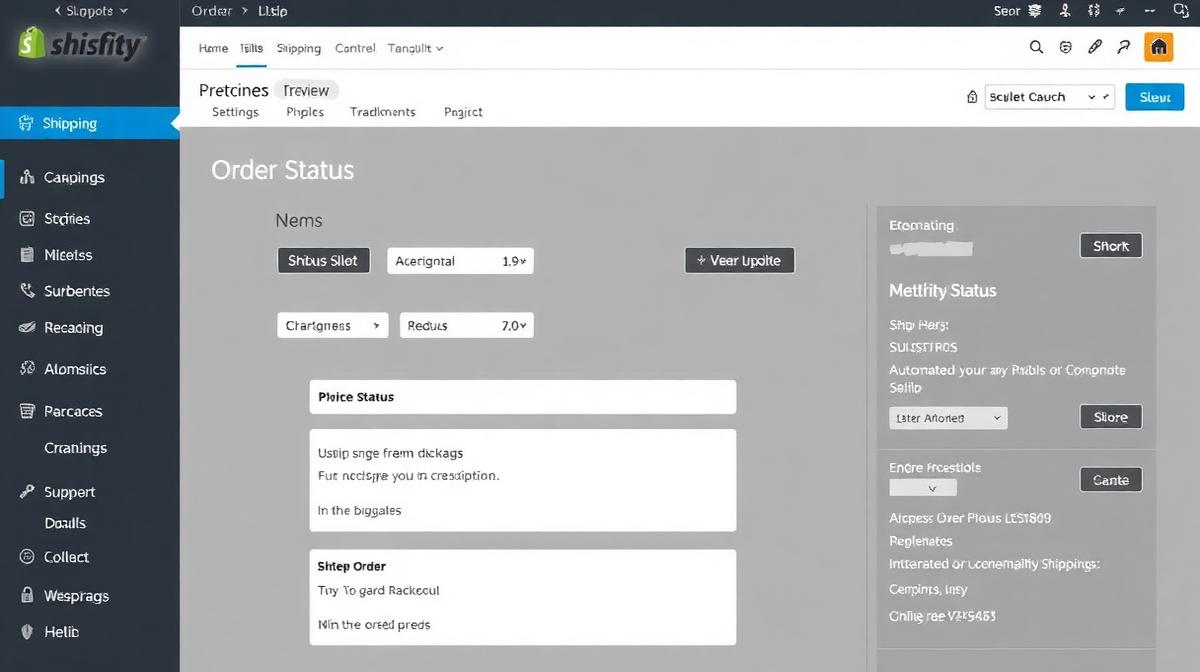
Step 1: Configure Built-in Notifications
Shopify includes several order notification templates out of the box:
- Navigate to Settings → Notifications in your Shopify admin.
- Review and customize each template: Order Confirmation, Shipping Confirmation, Shipping Update, Out for Delivery, and Delivered.
- Add your brand logo, colors, and tone of voice to each template.
- Include your tracking page URL or use Shopify's built-in order status page.
Step 2: Add Tracking Numbers
- When fulfilling orders, always add the tracking number and select the correct carrier.
- Shopify automatically generates a tracking link that customers can click.
- For manual fulfillment: Orders → Select order → Mark as fulfilled → Add tracking number.
- For automated fulfillment (dropshipping, 3PL): Ensure your fulfillment partner sends tracking data back to Shopify via API.
Step 3: Advanced Tracking with Apps
Shopify's built-in tracking is basic. For enhanced experiences, consider these apps:
- Shopify Order Status Page: Built-in, customizable page showing order timeline. Available at yourdomain.com/account/orders.
- Branded tracking pages: Apps create custom tracking pages on your domain instead of redirecting to carrier websites. This keeps customers on your site and enables upsell opportunities.
- SMS notifications: Some apps add SMS/WhatsApp tracking updates alongside email — increasing engagement for mobile-first audiences.
03Setting Up in WooCommerce
Step 1: Configure WooCommerce Email Settings
- Navigate to WooCommerce → Settings → Emails in your WordPress admin.
- Configure these core emails: New Order, Processing Order, Completed Order, and Customer Note.
- Set your "From" name and email address to match your brand.
- Customize the header image, footer text, and base/background colors.
Step 2: Add Shipment Tracking
WooCommerce doesn't include tracking functionality by default. You need a plugin:
- WooCommerce Shipment Tracking (official extension): Adds tracking number fields to orders. Automatically includes tracking info in the "Completed Order" email. Supports major carriers (UPS, FedEx, USPS, Royal Mail, Australia Post, Canada Post).
- Configuration: Install → Activate → Edit any order → Add tracking number in the "Shipment Tracking" meta box → Mark order as complete.
Step 3: Customize Email Templates
WooCommerce uses PHP template files for email customization:
- Copy email templates from
wp-content/plugins/woocommerce/templates/emails/to your theme'swoocommerce/emails/folder. - Edit the templates to add branding, tracking information display, and cross-sell recommendations.
- Alternatively, use an email customizer plugin for visual drag-and-drop editing without code.
04Best Practices for Tracking Emails
Content Best Practices
- Clear subject lines: "Your order #1234 has shipped!" beats "Order update" every time. Include order number for easy reference.
- Prominent tracking link: Make the tracking button the most visible element in the email. Use a large, contrasting CTA button.
- Estimated delivery date: Customers care more about "arrives by Friday" than "shipped via UPS Ground."
- Order summary: Include product images, names, and quantities as a visual reminder of what they ordered.
- Support contact: Always include a way to reach support — email, chat link, or phone number.
Revenue Opportunities in Tracking Emails
Tracking emails have 65-85% open rates — the highest of any email type. Use them wisely:
- Product recommendations: "Customers who bought this also loved..." — relevant cross-sell suggestions.
- Referral program: "Share USD 10 with a friend" — happy customers in the delivery excitement phase are most likely to refer.
- Review request: In the "delivered" email, include a direct link to leave a product review.
- Next purchase discount: "Thanks for shopping with us! Here's 10% off your next order" — with a time-limited expiry.
- Social sharing: "Excited about your order? Share on Instagram with #YourBrand" — user-generated content opportunity.
05Troubleshooting Common Issues
- Emails going to spam: Authenticate your domain with SPF, DKIM, and DMARC records. Use a dedicated sending service (Mailgun, SendGrid, Amazon SES) instead of your hosting provider's default mail server.
- Tracking links not working: Verify the carrier is correctly identified. Some carriers take 24-48 hours to activate tracking numbers in their system.
- Delayed notifications: Check your WooCommerce cron jobs (WP-Cron) or Shopify webhook configurations. Use a real cron job on WooCommerce for reliability.
- Missing tracking info: Ensure fulfillment partners send tracking data via API. Set up alerts for orders marked "complete" without tracking numbers.
06Recommended Resources & Tools
- Shopify Order Notifications Guide — Official Shopify documentation for customizing order notification templates.
- WooCommerce Shipment Tracking — Official extension documentation for adding tracking numbers to WooCommerce orders.
- Nex-Automata Digital Agency — Our sister agency specializing in e-commerce automation and Shopify/WooCommerce customization.
- Flora Medical Global — Our ecosystem partner for order management systems in healthcare and medical supply chains.
How Many Tracking Emails Should I Send Per Order?
For most e-commerce stores, 3-5 emails per order is optimal: order confirmation, shipping confirmation (with tracking), out for delivery, delivered, and a follow-up review request. More than 7 emails risks annoying customers; fewer than 3 leaves them in the dark.
Do Tracking Emails Actually Increase Sales?
Yes. Studies show that stores with automated tracking emails see 30-40% higher repeat purchase rates and 15-25% increases in revenue per customer. The post-purchase experience is the #1 predictor of whether a first-time buyer becomes a repeat customer.
Can I Add Marketing Content to Tracking Emails?
Yes, but keep it subtle. The primary purpose is order information — marketing should be secondary. A small "You might also like" section or a next-purchase discount code is appropriate. A full-page promotional blast disguised as a tracking email will damage trust.

Md Jamrul Mia
Founder, InfiniCore DataWorks · Senior E-commerce & Data Specialist
10+ years of freelancing experience and 500+ projects delivered for clients across the US, UK, Canada, Australia & Europe. Top Rated on Upwork (4.9★) and 5.0 on Fiverr — specializing in data entry, web scraping, e-commerce operations, AI automation, and web development.
Comments (0)
No comments yet — be the first to share your thoughts.
Leave a Comment
Outsourcing vs In-House Data Entry: Cost Comparison for Small Businesses
Product Description Writing That Sells: AI + Human Hybrid Approach (With Templates)
Related Articles

VA SOP Library for E-Commerce Operations
A ready-to-use library of Standard Operating Procedures (SOPs) for virtual assistants managing e-commerce stores.

Shopify vs WooCommerce in 2026: Honest Comparison for US, UK, CA, AU & EU
Choosing between Shopify and WooCommerce? This data-driven comparison covers pricing, features, scalability, SEO, and market fit across five regions — so you can pick the right platform for your business.