Shopify Product Upload Checklist for Busy Store Owners (Free Template)

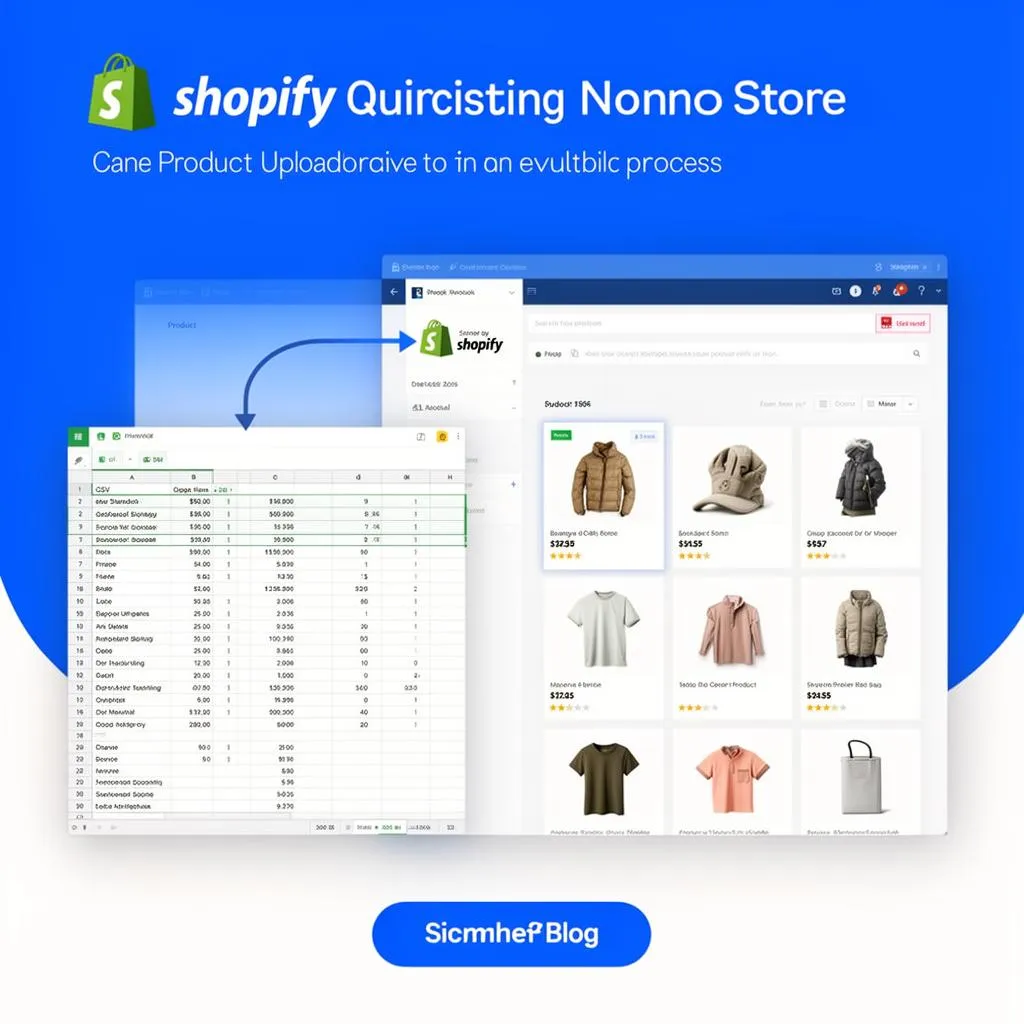
01Shopify Product Upload Checklist for Busy Store Owners
As a busy Shopify store owner, your time is a precious commodity. Every minute spent wrestling with product uploads is a minute not spent on marketing, customer service. Or strategic growth. This comprehensive checklist is designed to streamline your product upload process, ensuring accuracy, consistency.
Optimal performance on your Shopify store. We'll delve into the nitty-gritty of data preparation, image optimization, SEO best practices. Leveraging Shopify's powerful features to save you time and headaches.
Stop the endless fiddling and start selling efficiently. Let's transform your product upload workflow into a well-oiled machine.
02Pre-Upload Data Audit
Before you even think about touching that "Upload Product" button, a thorough data audit is essential. This foundational step prevents errors, inconsistencies. Future headaches. Think of it as spring cleaning for your product information.
Why a Pre-Upload Audit is Crucial
- Prevents Data Inconsistencies: Catch discrepancies in product names, descriptions. And attributes before they go live.
- Identifies Missing Information: Ensure all critical fields (SKU, price, weight, etc.) are present.
- Improves Product Discoverability: Correct data leads to better search results and filterability.
- Reduces Customer Confusion: Accurate listings mean fewer support queries and higher customer satisfaction.
- Streamlines Future Updates: A clean dataset is much easier to manage and update in the long run.
Key Audit Steps
- Source Data Identification: Where is your product data coming from? ERP, supplier spreadsheets, existing website exports? Consolidate everything into a single, manageable format, usually a spreadsheet.
- Duplicate Entry Check: Use spreadsheet functions to identify and remove duplicate product entries. This is particularly important if you're merging data from multiple sources.
- Mandatory Field Verification: Cross-reference your data with Shopify's mandatory fields. These typically include:
- Product Title
- Product Description
- Price
- SKU (Stock Keeping Unit)
- Weight (for shipping calculations)
- Inventory Quantity
- Data Type Validation: Ensure data types are consistent. For example, prices should be numbers, quantities should be integers. And descriptions should be text.
- Standardization of Units: If you sell products with different units of measure (e.g.. Grams. Kilograms. Pounds). Establish a standard unit for your Shopify store and convert accordingly.
- Broken Link Identification: If your product descriptions or other fields contain internal or external links. Verify that they are all functional.
- Cleaning Messy Data: This is arguably the most time-consuming but most rewarding part. Look for:
- Inconsistent capitalization (e.g., "blue," "Blue," "BLUE")
- Typographical errors
- Incorrect formatting (e.g., extra spaces, special characters)
- Unnecessary HTML tags in plain text fields
"Garbage in, garbage out" is more than just a cliché—it's the golden rule of product data management. A thorough pre-upload audit is your first line of defense against data disasters.
Product Data Formatting Standards
Consistency is key to a professional-looking and easily manageable Shopify store. Establishing and adhering to strict product data formatting standards will save you countless hours in the long run and improve the customer experience.
Why Standards Matter
- Improved Search Functionality: Consistent data makes it easier for customers to find products using your store's search bar and filters.
- Enhanced User Experience: Predictable formatting makes navigating your product pages more intuitive and pleasant.
- Simplified Data Management: Bulk edits and automated processes are much more efficient with standardized data.
- Better SEO Performance: Search engines favor structured and consistent data.
- Easier Integrations: When integrating with third-party apps or marketplaces, consistent data reduces mapping errors.
Key Formatting Standards to Implement
- Product Titles:
- Be Descriptive and Concise: Aim for clarity and include essential keywords.
- Consistency in Order: For example. "Brand Name - Product Type - Key Feature - Color - Size" (e.g.. "Nike - Running Shoes - Air Max 270 - Black - Men's 9").
- Capitalization: Use title case (e.g., "Soft Cotton T-Shirt") or sentence case (e.g., "Soft cotton t-shirt") consistently. Do not use ALL CAPS.
- Product Descriptions:
- Clear and Engaging: Highlight features and benefits. Use bullet points for readability.
- Structured HTML: Utilize headings (h3, h4), strong tags, lists (ul, ol) to break up text and improve readability.
- Keyword Integration: Naturally weave in relevant keywords without keyword stuffing.
- No External Formatting: Avoid copying and pasting directly from word processors which can introduce messy, hidden HTML.
- SKUs (Stock Keeping Units):
- Unique and Consistent: Every variant should have a unique SKU.
- Logical Structure: Consider a system that includes product type, color, size. And supplier code (e.g., TSHIRT-BLU-M-SUP123).
- Alphanumeric Only: Avoid special characters if possible, as they can cause issues with some integrations.
- Product Types:
- Standardized Categories: Use a consistent hierarchy and terminology (e.g.. "Apparel > T-Shirts > Short Sleeve" instead of "Shirts > Tees").
- Single Product Type: Shopify allows only one product type per product.
- Vendor/Brand Names:
- Exact Spelling: Ensure brand names are spelled identically every time.
- Consistent Case: "Nike" not "nike" or "NIKE".
- Weights:
- Consistent Units: Always use the same unit (e.g., kilograms or pounds) for all products. Shopify defaults to kilograms.
- Accuracy: Essential for precise shipping calculations.
- Pricing:
- Numeric Only: Do not include currency symbols (e.g., "25.00" not "USD 25.00").
- Two Decimal Places: "25.00" is preferred over "25".
By defining and enforcing these standards. You'll create a cohesive and professional catalog that’s a breeze to manage and a pleasure for customers to browse.
CSV Template Masterclass
The Shopify CSV file is your power tool for bulk product uploads and updates. Mastering its structure is critical for efficiency. Think of it as the blueprint for your product catalog.
Understanding the Shopify CSV Structure
Shopify's CSV format is highly structured, with specific column headers for different product attributes. While the basic template is available directly from your Shopify admin (Products > Export). Understanding each column's purpose and acceptable values is key.
Key Columns and Their Usage
Here’s a breakdown of the most critical columns in a Shopify Product CSV. Understanding these will help prevent errors and ensure your products are uploaded correctly.
| Column Name | Description | Example Value | Notes/Best Practices |
|---|---|---|---|
| Handle | Unique identifier for the product, used in URLs. Auto-generated if left blank. | black-cotton-tshirt | Must be unique per product. Use lowercase, hyphens instead of spaces. |
| Title | The name of your product. | Black Cotton T-Shirt | Descriptive, concise, keyword-rich. |
| Body (HTML) | The product description, can include HTML. | <p>This is a <strong>soft cotton</strong> t-shirt.</p> | Use basic HTML for formatting (p, strong, ul, ol, h3, h4). |
| Vendor | The brand or manufacturer name. | Acme Apparel | Consistent spelling and capitalization. |
| Product Type | The category of the product. | Apparel | Use consistent, standardized types for filtering. |
| Tags | Keywords for filtering products. Comma-separated. | cotton, tee, men, summer | Helps with internal search and collection automation. |
| Published | Visibility status (TRUE/FALSE). | TRUE | Set to TRUE to make the product visible. |
| Option1 Name | Name of the first product option (e.g., "Color"). | Color | Leave blank if no options. |
| Option1 Value | Value of the first product option (e.g., "Red"). | Red | Must correspond to Option1 Name. |
| Option2 Name | Name of the second product option (e.g., "Size"). | Size | |
| Option2 Value | Value of the second product option (e.g., "Small"). | Small | |
| Option3 Name | Name of the third product option (e.g., "Material"). | Material | Shopify supports up to 3 options. |
| Option3 Value | Value of the third product option (e.g., "Cotton"). | Cotton | |
| SKU | Stock Keeping Unit, unique identifier for each variant. | TSHIRT-BLK-S | Crucial for inventory management. Must be unique. |
| HS Code | Harmonized System code for international shipping. | 6109.10.00 | Optional, but useful for international customs. |
| COO | Country of Origin. | United States | Optional, important for international shipping. |
| Grams | Weight of the product variant in grams. | 200 | Crucial for accurate shipping calculations. |
| Price | Selling price of the product variant. | 25.00 | Numeric only, two decimal places. |
| Compare At Price | Original price for sale indications. | 35.00 | Only enter if on sale. Numeric only. |
| Requires Tax | Whether the product variant is taxable (TRUE/FALSE). | TRUE | Set based on your tax obligations. |
| Track Quantity | Whether Shopify tracks inventory for this variant (TRUE/FALSE). | TRUE | Essential for accurate inventory. |
| Quantity | Current stock level for the product variant. | 100 | Only relevant if "Track Quantity" is TRUE. |
| Inventory Policy | Deny, Continue (for overselling). | deny | 'deny' prevents overselling. 'continue' allows it. |
| Fulfillment Service | Who fulfills the order (manual, shopify, custom). | manual | 'manual' is for self-fulfillment. |
| Image Src | URL of the main product image. | https://example.com/image.jpg | Needs to be a publicly accessible URL. |
| Image Position | Order of the image (1, 2, 3...). | 1 | Only applies to first row of a product / variant. |
| Image Alt Text | Alternative text for accessibility and SEO. | Black cotton t-shirt front view | Descriptive text for accessibility viewers and search engines. |
| Gift Card | Is this product a gift card (TRUE/FALSE). | FALSE | Specific Shopify functionality. |
| SEO Title | Custom SEO title for search engines. | Buy Black Cotton T-Shirt Online - Acme Apparel | Overrides default product title for SEO. |
| SEO Description | Custom SEO description for search engines. | Shop our comfortable black cotton t-shirt. Perfect for everyday wear. Free shipping. | Meta description for search engines. |
| Variant Image | URL of the image specific to this variant. | https://example.com/black-tee.jpg | Links a specific image to a variant. |
| Variant Weight Unit | Unit for the variant weight (g, kg, oz, lb). | kg | Important for shipping accuracy. |
| Cost per item | Your cost for the product variant. | 12.00 | For profit reporting. Not shown to customers. |
| Status | Product status (active, draft, archived). | active |
Tips for CSV Handling
- Use a Spreadsheet Editor: Tools like Google Sheets, Microsoft Excel. Or LibreOffice Calc are ideal. Avoid plain text editors for large CSVs.
- Character Encoding: Always save your CSV as UTF-8. This prevents issues with special characters (e.g., accents, umlauts).
- Test Small Batches: Before uploading thousands of products, test with a small batch (5-10 products) to identify any formatting errors.
- Backup Before Updating: If you're updating existing products, export your current product data first as a backup.
- Handle Column Order: While Shopify is somewhat forgiving, maintaining the standard column order helps prevent confusion.
- Empty Fields: For optional fields you don't need, leave them completely blank, do not put "N/A" or "None".
Mastering the Shopify CSV is a fundamental skill for efficient store management. With a solid understanding of these fields and best practices, your bulk uploads and updates will be smooth sailing.
03Image Optimization Pipeline
Product images are the silent salespeople of your Shopify store. High-quality, optimized images don't just look good. They load fast, rank better in search. Significantly impact conversion rates. A robust image optimization pipeline is non-negotiable for busy store owners.
The Impact of Images
- First Impressions: Images instantly convey quality and professionalism.
- Conversion Rates: Studies consistently show that high-quality images correlate with higher conversion rates.
- Page Speed: Large, unoptimized images slow down your site, leading to frustrated customers and lower search rankings.
- SEO: Image alt text and appropriate file names contribute to image search visibility.
- Trust and Credibility: Professional imagery builds trust with potential buyers.
Your Image Optimization Pipeline
- Source High-Quality Originals: Start with the best possible images from your photographer or supplier. High resolution is good, within reason (e.g., 3000px on the longest side is often sufficient for product detail).
- Consistent Styling and Backgrounds:
- Use consistent lighting.
- Employ neutral backgrounds (white, light gray) for primary product shots.
- Ensure branding elements (logos, watermarks) are subtly integrated if at all.
- Resizing for Shopify:
- Shopify recommends images up to 4472 x 4472 pixels. But 2048 x 2048 pixels at 72 PPI is a good balance for most square product photos. Offering zoom capabilities without excessive file size.
- For non-square images, aim for the longest side to be around 2048px.
- Ensure a consistent aspect ratio across all images for a uniform gallery appearance.
- Image Compression:
- This is where most of the file size reduction happens without significant loss of visual quality.
- Use tools like TinyPNG, Compressor.io. Or ImageOptim (Mac). Shopify also performs some automatic compression upon upload.
- Aim for a balance where file size is minimal but image quality remains high.
- File Naming Conventions:
- Use descriptive, keyword-rich file names (e.g.,
black-cotton-tshirt-front.jpginstead ofIMG_12345.jpg). - Use lowercase letters and hyphens for spaces.
- Include variant details where appropriate (e.g.,
red-sports-shoe-side.jpg).
- Use descriptive, keyword-rich file names (e.g.,
- Alt Text - SEO and Accessibility Powerhouse:
- Describe the Image: What is in the picture?
- Include Keywords: Naturally weave in relevant keywords for the product.
- Be Concise: Aim for 10-15 words.
- Example: "Men's black cotton t-shirt with crew neck" or "Red leather women's shoulder bag with gold clasp."
- This is crucial for visually impaired users and for search engine ranking.
- Image Types:
- JPEG: Best for photos with many colors and gradients. Offers good compression.
- PNG: Best for images with transparency or sharp lines (logos, graphics). Larger file sizes than JPEG.
- WebP: A modern format offering superior compression. Shopify now supports WebP conversion automatically for themes that support it. Leverage this where possible.
Image Specification Checklist
| Attribute | Recommendation | Why it Matters |
|---|---|---|
| Resolution Max | 4472 x 4472 pixels | Allows for excellent zoom capabilities without loss of detail. |
| Resolution Optimal | 2048 x 2048 pixels (for square) | Good balance of quality and file size for most displays. |
| File Size | Under 200 KB (ideal), max 500 KB per image | Crucial for page load speed. Larger slows down the site. |
| Aspect Ratio | Consistent across all images in a gallery (e.g., 1:1, 3:2, 4:3) | Creates a visually appealing and organized layout. |
| File Format | JPEG (photos), PNG (graphics/transparency), WebP (modern, best compression) | Choose based on image content for optimal quality/size. |
| File Naming | product-name-color-view.jpg (e.g., mens-blue-tshirt-front.jpg) |
Improves SEO and asset organization. |
| Alt Text | Descriptive, keyword-rich (e.g., "Men's blue cotton t-shirt, front view") | Essential for accessibility and image SEO. |
By implementing this image optimization pipeline. You'll not only enhance the visual appeal of your store but also significantly improve its performance and search engine visibility.
04SEO Title and Description Formula
Your product's SEO title and description are critical for attracting organic traffic from search engines like Google. These aren't just technical details. They are mini-advertisements designed to entice clicks. Crafting them strategically is an art and a science.
Why SEO Title and Description are Crucial
- Search Engine Visibility: They determine how your product appears in search results.
- Click-Through Rate (CTR): A compelling title and description encourage users to click on your listing rather than a competitor's.
- Relevance Signal: They help search engines understand what your product is about, leading to better ranking for relevant queries.
- Customer First Impression: Often, this is the first interaction a potential customer has with your product.
The SEO Title Formula
The SEO Title (often called Meta Title) is the blue, clickable link you see in search results. It's also what appears in the browser tab. Shopify typically defaults this to your Product Title. It's often beneficial to customize it.
Formula: Primary Keyword | Secondary Keyword - Brand Name | Selling Proposition
- Length: Aim for 50-60 characters to ensure it's not truncated in search results.
- Primary Keyword: The main term people search for to find your product (e.g., "Men's Leather Wallet").
- Secondary Keyword: A related term or specific feature (e.g., "Slim Front Pocket").
- Brand Name: Reinforces your brand.
- Selling Proposition: What makes it unique or desirable (e.g., "Free Shipping," "Handmade").
Examples:
- Product: Blue Cotton T-Shirt, Acme Apparel
- Default: Blue Cotton T-Shirt
- Optimized: Men's Blue Cotton T-Shirt | Crew Neck Tee - Acme Apparel
- Product: Stainless Steel Water Bottle, HydrateCo
- Default: Stainless Steel Water Bottle
- Optimized: 24oz Insulated Water Bottle | Stainless Steel - HydrateCo
The SEO Description Formula
The SEO Description (Meta Description) is the short paragraph text below the title in search results. While not a direct ranking factor, a well-crafted meta description significantly impacts CTR. Indirectly boosts rankings.
Formula: Compelling Hook + Key Features/Benefits + Call to Action (CTA) + Value Proposition
- Length: Aim for 150-160 characters to avoid truncation.
- Hook: Start with something to grab attention.
- Key Features/Benefits: Highlight what makes your product great.
- Call to Action (CTA): Encourage a click (e.g., "Shop Now," "Learn More").
- Value Proposition: What makes you stand out (e.g., "Free Shipping," "2-Year Warranty").
Examples:
- Product: Blue Cotton T-Shirt, Acme Apparel
- Default: (Often product description snippet or blank)
- Optimized: Shop our comfortable men's blue cotton t-shirt. Ultra-soft fabric, perfect for everyday wear. Get yours today with free USD shipping!
- Product: Stainless Steel Water Bottle, HydrateCo
- Default: (Often product description snippet or blank)
- Optimized: Stay hydrated with HydrateCo's 24oz insulated water bottle. Keeps drinks cold for 24 hours. Durable &. Eco-friendly. Shop now!
Best Practices for SEO Titles and Descriptions
- Keyword Research: Use tools like Google Keyword Planner or Semrush to find what customers are actually searching for.
- Uniqueness: Every product should have a unique SEO title and description. Avoid duplication.
- Readability: Write for humans first, search engines second. It should make sense and flow naturally.
- Relevance: Ensure the title and description accurately reflect the product. Misleading content hurts trust and conversion.
- A/B Test: If possible, experiment with different titles and descriptions to see what performs best.
- Don't Keyword Stuff: Overloading with keywords will be penalized by search engines and looks spammy.
- Keep an Eye on Competitors: See how successful competitors are structuring their titles and descriptions for inspiration.
By investing time in crafting effective SEO titles and descriptions. You're investing in the long-term discoverability and success of your Shopify store. For a broader perspective on e-commerce optimization, check out our Ecommerce Optimization Guide.
05Variant and Option Management
Effectively managing product variants and options is crucial for complex products like apparel (size, color) or electronics (model, memory). Shopify allows up to three options per product, each with its own values. Proper setup ensures a smooth customer experience and accurate inventory tracking.
Understanding Variants and Options
- Options: These are the characteristics that differentiate your product variants (e.g., "Color," "Size," "Material"). Shopify allows up to 3 options.
- Option Values: These are the specific choices for each option (e.g., for "Color": "Red," "Blue," "Green". For "Size": "Small," "Medium," "Large").
- Variants: Each unique combination of option values creates a distinct product variant (e.g., "Red, Small," "Blue, Medium"). Each variant can have its own SKU, price, inventory, weight. And image.
Best Practices for Variant Setup
- Logical Option Names: Use clear, descriptive names for your options (e.g., "Color," not "C". "Size," not "Sz").
- Consistent Option Values:
- Use consistent capitalization (e.g., "Small," "Medium," "Large" not "small, Medium, large").
- Standardize terminology (e.g., "Navy Blue" not "Dark Blue").
- Limit Options Sensibly: While Shopify allows 3 options, too many choices can overwhelm customers. Consider grouping extensive options into separate products if it makes sense (e.g., "Summer Collection T-Shirts" vs. "Winter Collection T-Shirts" instead of having "Season" as an option).
- Assign Unique SKUs: Every variant MUST have a unique SKU. This is fundamental for inventory management, order fulfillment. And third-party integrations. A common pattern is
PRODUCTCODE-COLORCODE-SIZECODE(e.g.,TSHIRT-BLK-S). - Accurate Inventory Tracking: Ensure each variant's quantity is accurately represented and "Track quantity" is enabled.
- Variant-Specific Pricing and Weight:
- If different variants have different prices (e.g., larger sizes cost more), set these up individually.
- Ensure correct weights for each variant for accurate shipping calculations.
- Dedicated Variant Images:
- Upload specific images for each color or distinct visual variant. This automatically changes the product image when a customer selects a variant, greatly enhancing the user experience.
- You can do this directly in the Shopify admin or via the CSV using the
Variant Imagecolumn.
- URL Handles for Variants (Advanced):
- Shopify automatically creates a single handle for the product. While variants don't have separate handles, apps can sometimes help with more granular SEO for specific variants.
Managing Variants via CSV
When using the CSV for products with variants, each variant will occupy its own row. The "Handle" column will be the same for all variants belonging to the same product. The "Option1 Value," "Option2 Value," "Option3 Value," "SKU," "Grams," "Price," "Compare At Price," "Quantity," and "Variant Image" columns will be unique for each variant row.
Example CSV Structure for a T-Shirt with Color and Size Options:
| Handle | Title | Option1 Name | Option1 Value | Option2 Name | Option2 Value | SKU | Grams | Price | Compare At Price | Quantity | Image Src | Variant Image |
|---|---|---|---|---|---|---|---|---|---|---|---|---|
| cotton-tee | Cotton T-Shirt | Color | Red | Size | Small | TEE-RED-S | 150 | 20.00 | 10 | https://example.com/tee_red.jpg | https://example.com/tee_red_s.jpg | |
| cotton-tee | Cotton T-Shirt | Color | Red | Size | Medium | TEE-RED-M | 160 | 20.00 | 15 | https://example.com/tee_red_m.jpg | ||
| cotton-tee | Cotton T-Shirt | Color | Blue | Size | Small | TEE-BLUE-S | 150 | 20.00 | 25.00 | 5 | https://example.com/tee_blue.jpg | https://example.com/tee_blue_s.jpg |
| cotton-tee | Cotton T-Shirt | Color | Blue | Size | Medium | TEE-BLUE-M | 160 | 20.00 | 25.00 | 20 | https://example.com/tee_blue_m.jpg |
Note: Only the *first* row for a product (defined by its "Handle") needs to contain the main product-level information like "Title". "Body (HTML)". "Vendor". "Product Type". "Tags", "Published", "Image Src", "Image Position". "Image Alt Text". Subsequent rows for the same product's variants only need the specific variant-level information.
Proper variant management simplifies product creation, reduces customer service inquiries. Ensures a seamless shopping experience for your customers.
Inventory and Fulfillment Setup
Efficient inventory and fulfillment management are the backbone of a successful e-commerce operation. Accurate stock levels prevent overselling. Clear fulfillment policies ensure timely deliveries and satisfied customers.
Inventory Management Essentials
- Track Quantity: For every variant, ensure "Track quantity" is enabled in Shopify. This allows the system to automatically update stock levels as orders are placed. Without this, your inventory accuracy will suffer.
- Set Initial Quantity: Enter the precise number of units currently in stock for each variant. Double-check these figures meticulously.
- Inventory Policy: Decide how to handle out-of-stock situations:
- Deny (Default): Prevents customers from purchasing items once stock hits zero. This is usually the safest option to prevent overselling.
- Continue Selling When Out of Stock: Allows customers to purchase items even when inventory is zero or negative. Useful for pre-orders or dropshipping where you don't hold physical stock. But requires careful management to avoid disappointed customers.
- SKU Consistency: Reiterate the importance of unique and consistent SKUs for each variant. They are critical for integrating with inventory management systems, fulfillment services. And accounting software.
- Weight Accuracy: Enter the correct weight for each product variant in grams. This is crucial for precise shipping rate calculations, especially if you use carrier-calculated rates.
- Cost Per Item: While not visible to customers. Recording the cost per item for each variant is essential for accurate profit reporting and financial analysis within Shopify.
Fulfillment Setup
- Fulfillment Service: This specifies who is responsible for shipping the product.
- Manual: You (the store owner) fulfill orders yourself. This is the default for most small businesses.
- Shopify: Used if you're using Shopify Fulfillment Network (now shut down. But some legacy accounts or specific partners might still see a version).
- Custom: For third-party fulfillment services (3PLs) or dropshipping apps that integrate with Shopify (e.g., Printful, Spocket, custom apps). When selecting a custom service, ensure it's correctly set up in your 'Shipping and delivery' settings.
- Shipping Profiles:
- Group products with similar shipping requirements (weight, dimensions, origin, destination) into specific shipping profiles. This allows you to set different shipping rates for different product types (e.g., heavy items vs. Light items).
- Ensure your product's weight and dimensions (often handled by apps) are accurate to avoid discrepancies with shipping carriers.
- International Shipping Details (HS Code. COO):
- For international sales. Providing the Harmonized System (HS) code and Country of Origin (COO) for each product variant helps with customs declarations and duties calculations. Reducing delays and unexpected fees for customers.
- Restricting Sales (Geographic): If you cannot ship certain products to specific regions. You can set up shipping zones in Shopify to prevent purchases in those areas.
Tools and Integrations
- Inventory Management Apps: For more complex inventory needs (multiple warehouses. Bundles. Kits). Consider Shopify apps like Stocky (Shopify's own app). TradeGecko. Or Skulabs.
- Order Fulfillment Apps: Integrate with dropshipping suppliers or 3PLs to automate order processing and shipping updates.
A well-configured inventory and fulfillment setup minimizes operational headaches, builds customer confidence through reliable deliveries. Provides you with accurate data for business decisions. For specific advice on outsourcing, consider reading Best Way to Outsource Shopify Product Uploads.
Pricing and Compare-At Strategy
Pricing is more than just a number. It's a strategic decision that impacts perceived value, profitability. Sales volume. Implementing a smart pricing and "compare-at" strategy can significantly boost your store's performance.
Setting Your Product Price (Selling Price)
- Cost-Plus Pricing: Calculate your total costs (COGS, shipping, marketing, overhead) and add your desired profit margin.
Price = Total Cost / (1 - Desired Profit Margin %)
- Value-Based Pricing: Price based on the perceived value to the customer, rather than just cost. Often used for unique or premium products.
- Competitor-Based Pricing: Analyze what your competitors are charging for similar products. Don't just match. Find your unique selling proposition (USP) and price accordingly.
- Psychological Pricing:
- Charm Pricing: Ending prices in .99 or .97 (e.g., USD 19.99) can make them appear cheaper.
- Price Anchoring: Presenting a higher-priced item first can make subsequent items seem more affordable.
- Consider Shipping Costs: Factor in how shipping costs will affect your final price. Will you offer free shipping and build it into the price. Or charge separately?
- Sales Tax/VAT: Ensure your prices account for any applicable sales tax or VAT. Or you've configured Shopify to handle it correctly.
The Compare-At Price Strategy (Sales & Discounts)
The "Compare At Price" field in Shopify is specifically designed to show an item's original price alongside a discounted sale price. Creating a sense of value and urgency. This is a powerful psychological tool.
| Strategy | Description | Example (Price vs. Compare At Price) | Considerations |
|---|---|---|---|
| Standard Sale | Temporary price reduction to boost sales or clear inventory. | USD 25.00 vs. USD 35.00 | Clearly communicate sale duration. Avoid constant sales as it can devalue products. |
| Seasonal Discounts | Tying sales to holidays or specific seasons (e.g., Black Friday, Summer Sale). | USD 49.99 vs. USD 79.99 | Plan well in advance. Align with marketing campaigns. |
| Clearance/End-of-Life | Marking down products to clear old inventory or discontinued items. | USD 15.00 vs. USD 40.00 | Be transparent that these are final sale items. |
| Bundle Deals | Offering a discount when multiple related products are purchased together. (Achieved via apps or custom code often) | USD 70.00 (for 2 items) vs. USD 100.00 (if bought separately) | Requires careful setup, often with a product bundling app. |
| Loss Leader | Selling a popular product at a low/no profit to attract customers to higher-margin items. | USD 9.99 vs. USD 20.00 | Ensure you have complementary, higher-margin products in your catalog. |
Best Practices for "Compare At Price"
- Be Truthful: Only use a "Compare At Price" if the product was genuinely sold at that higher price for a reasonable period. Or if it's a manufacturer's suggested retail price (MSRP). Misleading pricing can lead to legal issues and erode customer trust.
- Create Urgency (Sparingly): Use sale prices to create a sense of urgency. But don't overuse them. Constant "sales" can make regular prices seem inflated.
- Highlight the Savings: Your theme will typically calculate and display the percentage saved, making the deal more appealing.
- A/B Test: Experiment with different discount percentages and "Compare At Price" values to see which ones resonate most with your audience.
- Consistent Currency: Ensure all pricing is in your store's primary currency (e.g., USD). Do not include currency symbols in the CSV.
A well-thought-out pricing strategy. Combined with judicious use of the "Compare At Price," can significantly impact your revenue and customer perception. It’s an ongoing process of analysis and adjustment.
Collection Tagging and Organization
Collections are how customers browse and discover products on your Shopify store. Effective tagging and organization of products into collections are vital for navigability, user experience. Even SEO.
Understanding Collections and Tags
- Collections: Groups of products that share a common theme (e.g., "Men's T-Shirts," "Summer Sale," "New Arrivals"). Shopify supports two types:
- Manual Collections: You manually add and remove products. Best for small, curated collections or specific promotions.
- Automated Collections: Products are automatically added or removed based on conditions you set (e.g.. "Product Type is equal to 'T-Shirt'". "Tag contains 'sale'"). This is highly recommended for larger stores.
- Tags: Keywords or phrases you assign to products. They act as invisible labels that can be used to filter products, drive automated collections. And enhance internal search.
Best Practices for Collection and Tagging
- Plan Your Collection Hierarchy:
- Map out your main product categories and subcategories before creating them.
- Aim for a logical flow that customers would expect.
- Example: "Apparel" (Parent Collection) >. "Men's Apparel" >. "Men's T-Shirts" (Child Collections).
- Leverage Automated Collections Heavily:
- This is where tags shine. Instead of manually adding products. Set conditions like "Product Tag equals 'mens-tshirt'" or "Product Type is equal to 'Dress' AND Title contains 'Floral'".
- Automated collections are scaleable and reduce manual effort. They also ensure consistency.
- Strategic Tagging:
- Keep Tags Consistent: Use standardized capitalization and spellings (e.g., "red," "Red," "RED" should be just "red").
- Category Tags: Reflect your main collections (e.g., "mens", "womens", "shoes", "accessories").
- Descriptive Tags: Describe features, materials, styles (e.g., "cotton", "sustainable", "minimalist", "waterproof").
- Seasonal/Promotional Tags: "sale", "new-arrivals", "holiday-gift".
- Vendor/Brand Tags: If you carry many brands, tag them (e.g., "Nike", "Adidas").
- Limit Tags per Product: Don't overload. 5-10 relevant tags are usually sufficient.
- Use Hyphens for Multi-Word Tags: "long-sleeve" instead of "long sleeve" for better filtering and URL generation.
- Product Type vs. Tags:
- Product Type: The broadest category (e.g., "Dress," "T-Shirt," "Mug"). Products can have only one product type.
- Tags: More granular details or attributes (e.g., "floral," "midi," "cocktail" for a "Dress"). Products can have many tags.
- Use Product Type for the primary, overarching classification. Use tags for everything else.
- SEO for Collections:
- Collection Title: Keep it descriptive and keyword-rich (e.g., "Men's Organic Cotton T-Shirts").
- Collection Description: Write unique, keyword-rich content for your main collection pages. This helps search engines understand the collection's purpose and can improve its ranking.
- SEO Handle: Ensure your collection handle is clean and descriptive (e.g.,
/collections/mens-organic-tshirts).
- Navigation Menus: Link your top-level collections to your main navigation menu. Use dropdowns for sub-collections to maintain a clean and easy-to-use menu.
- Filtering/Facets: Many themes or apps use product tags to power filters on collection pages (e.g., filter by "color," "size," "material"). Ensure your tagging strategy supports these filters.
A well-structured collection and tagging system is paramount for an intuitive customer journey. It helps customers find what they're looking for faster, improving their experience and your conversion rates.
06Bulk Upload Tools Comparison
Manually adding products one by one is feasible for a handful of items but becomes a major bottleneck for growing stores. Bulk upload tools, whether native to Shopify or third-party apps, are essential for efficiency.
Native Shopify Methods
- Shopify CSV Import/Export:
- Pros: Free, native, highly flexible for complex product data including variants, inventory. And images via URLs. Good for large dataset manipulation.
- Cons: Steep learning curve for complex CSV structures, requires careful formatting, can be error-prone if not precise. Managing image uploads (requiring URLs) can be cumbersome without an external image host.
- Best For: Initial large product catalog uploads, comprehensive product updates, migrating data, advanced users comfortable with spreadsheets.
- Shopify Admin UI (Manual Entry):
- Pros: Intuitive, great for adding a few new products or making quick edits. Visual interface helps ensure all fields are filled.
- Cons: Very slow for more than a handful of products. Not suitable for bulk inventory updates or major catalog changes.
- Best For: Adding 1-5 new products, minor edits to existing products.
Third-Party Shopify Apps (Examples)
| Tool Category / App | Key Features | Pros | Cons | Best For |
|---|---|---|---|---|
| Product Importer & Exporter by Hextom | Advanced CSV/Excel import/export, scheduled imports, multi-format support, field mapping. | Highly flexible, handles complex data, automates tasks, excellent for recurring updates. | Paid app, can still require some comfort with data mapping. | Stores with complex data, frequent updates, or multiple suppliers. |
| Excelify (now Matrixify) | Comprehensive import/export for all Shopify data types (products, orders, customers), supports Excel, CSV, Google Sheets, JSON. | Extremely powerful, fine-grained control, excellent support, robust error reporting. | Can be overwhelming for beginners, higher learning curve, paid app. | Large enterprises, advanced users, data migration, complex integrations. |
| EZ Exporter / EZ Importer | Focus on simpler, intuitive import/export with visual mapping. Good for routine operations. | User-friendly interface, easier for non-technical users, good for specific tasks. | May not have the full power of Excelify for highly complex scenarios. Paid app. | SMBs needing straightforward, reliable import/export. |
| Dropshipping Apps (e.g., Oberlo, Printful) | Integrate directly with suppliers, automatically import product data (titles, descriptions, images, variants, inventory). | Extremely fast product creation, automated inventory sync, streamlined fulfillment. | Limited customization of product data, dependence on supplier's data quality. | Dropshipping businesses, print-on-demand stores. |
| Image Management Apps (e.g., Bulk Image Edit, SEO & Speed by LoyaltyHarbor) | Automate image optimization (resizing, compression, alt text), rename files. | Saves significant time on image prep, improves site speed and SEO. | Focuses only on images, not full product data. Paid apps. | Any store with a large product catalog needing image optimization. |
Key Considerations When Choosing a Tool
- Data Complexity: How many variants? How many options? Nested data?
- Frequency of Updates: Are you doing a one-time upload or daily inventory syncs?
- Technical Skill Level: Are you comfortable with spreadsheets and data mapping. Or do you need a more visual, guided approach?
- Budget: Free CSV vs. Paid apps with ongoing subscriptions.
- Integration Needs: Will this tool need to communicate with your ERP, POS. Or other systems?
- Support & Documentation: Good support can be invaluable when dealing with data issues.
For operations involving vast amounts of data or frequent updates. Investing in a robust third-party app will quickly pay for itself in time saved and error prevention. For specific advice on outsourcing, consider reading Best Way to Outsource Shopify Product Uploads.
07Common Upload Mistakes and Fixes
Even with the best preparation, product uploads can hit snags. Knowing the most common mistakes and how to fix them will save you significant debugging time and prevent customer-facing errors.
1. Incorrect CSV Formatting
- Mistake: Wrong column headers. Missing mandatory fields. Incorrect character encoding. Using commas in fields that aren't quoted. Pasting rich text into plain text fields.
- Fix:
- Always start with a fresh Shopify export CSV template as your base.
- Save as UTF-8.
- Ensure all text fields containing commas or special characters are enclosed in double quotes (e.g., "My, Product, Description").
- Double-check against Shopify's CSV documentation.
- For complex text, clean out hidden HTML characters.
2. Duplicate Handles and SKUs
- Mistake: Uploading new products with an existing handle (will update the existing product instead of creating a new one) or duplicate SKUs for different variants.
- Fix:
- Handles must be unique for each *product*.
- SKUs must be unique for each *variant*.
- Use spreadsheet functions (e.g., Conditional Formatting >. Duplicate Values in Excel/Google Sheets) to pre-audit your CSV for duplicates before upload.
- If updating, ensure handles match correctly. If creating, ensure handles are truly new.
3. Image Issues
- Mistake: Broken image URLs, large file sizes, incorrect aspect ratios, missing alt text, variant images not linking to correct variants.
- Fix:
- Verify all image URLs are publicly accessible and correct. Test them in a browser.
- Optimize images BEFORE upload (resizing, compression, consistent aspect ratios). Refer to the Image Optimization Pipeline section.
- Fill in all Alt Text for SEO and accessibility.
- Ensure the
Variant Imagecolumn in your CSV points to the correct image for each variant row if using a CSV.
4. Incorrect Inventory Management
- Mistake: Forgetting to enable "Track quantity," setting incorrect initial quantities. Or having inconsistent "Inventory Policy" settings.
- Fix:
- Always set
Track Quantity = TRUE(unless you specifically dropship or use pre-orders). - Verify the
Quantitycolumn is accurate. - Choose
Inventory Policy = denyto prevent overselling. Orcontinueif you understand the implications.
- Always set
5. Pricing and Compare At Price Errors
- Mistake: Including currency symbols (e.g., USD 25.00 instead of 25.00), accidental decimal point errors. Or misusing "Compare At Price."
- Fix:
- Ensure all price fields are numeric only, with two decimal places (e.g.,
25.00). - Double-check prices against your source data.
- Only use "Compare At Price" strategically and truthfully for sales.
- Ensure all price fields are numeric only, with two decimal places (e.g.,
6. Variant Option Mismatch
- Mistake: Forgetting to define
Option1 Name(e.g., "Color") when providingOption1 Value(e.g., "Red"). Or mismatching option values with their respective option names. - Fix:
- If a product has variants. The first row for that handle MUST define
Option1 Name.Option2 Name.Option3 Name. Subsequent variant rows only need the values. - Ensure values under
Option1 Valuecorrespond accurately toOption1 Name. And so on.
- If a product has variants. The first row for that handle MUST define
7. SEO Field Neglect
- Mistake: Leaving SEO Title and SEO Description blank, letting Shopify automatically pull from product title/description. Or keyword stuffing.
- Fix:
- Craft unique, compelling SEO Titles (50-60 chars) and Descriptions (150-160 chars) for each product.
- Include primary and secondary keywords naturally.
- Avoid keyword stuffing.
- Refer back to the "SEO Title and Description Formula" section.
8. Mis-categorization/Tagging
- Mistake: Products appearing in the wrong collections, missing important tags that would aid filtering. Or inconsistent tagging.
- Fix:
- Review your collection conditions if they are automated.
- Audit product tags for consistency and completeness.
- Ensure you're using Product Type for broad categories and Tags for more granular attributes.
By being aware of these common pitfalls and proactively addressing them. You can significantly reduce the time and stress associated with product uploads. Keeping your store running smoothly.
Automation With Shopify Apps
For busy store owners, automation isn't a luxury. It's a necessity. Shopify's extensive app store offers solutions to automate various product-related tasks, saving you countless hours and reducing manual errors.
Why Automate?
- Time Savings: Delegate repetitive tasks to apps, freeing up your time for strategic work.
- Error Reduction: Automated processes are less prone to human error.
- Consistency: Ensure branding, formatting. And data standards are uniformly applied.
- Scalability: Easily manage a growing product catalog without increasing manual labor.
- Improved Customer Experience: Up-to-date inventory, consistent information. And fast loading times contribute to happier customers.
Key Areas for Product-Related Automation
- Product Data Synchronization (ERP, POS, Suppliers):
- Problem: Manually updating product details, inventory. And pricing across multiple systems (e.g., your Shopify store, an ERP, an in-store POS. Or a dropshipping supplier).
- Automation: Integration apps sync data between Shopify and your other platforms. This ensures real-time inventory levels, consistent pricing. And up-to-date product descriptions.
- Example Apps: Stock Sync, Rewind, various ERP/POS connectors.
- Image Optimization and SEO:
- Problem: Manually resizing, compressing. And adding alt text to images for thousands of products is tedious and time-consuming.
- Automation: Image optimizer apps automatically process new and existing product images to reduce file size, add/update alt text. And ensure consistent dimensions.
- Example Apps: Bulk Image Edit, Image SEO & Speed by LoyaltyHarbor, Crush.pics.
- Tagging and Collection Assignment:
- Problem: Manually applying tags and adding products to collections. Especially for new arrivals or seasonal shifts.
- Automation: Apps can automatically apply tags based on product titles, descriptions, vendors. Or types. They can also create or populate collections based on these tags or other criteria.
- Example Apps: Smart Tags, Product Filter & Search (many filter apps have tagging automation).
- Pricing and Discounts:
- Problem: Manually setting up sales, tiered pricing. Or bulk discounts, then reverting them.
- Automation: Pricing apps can schedule sales, apply sitewide or collection-specific discounts, implement volume pricing. And automatically revert prices after a promotional period.
- Example Apps: Discounts & Sales Scheduler, Bold Discounts, Bundle Products.
- Product Reviews and UGC (User Generated Content):
- Problem: Manually soliciting, collecting. And displaying product reviews.
- Automation: Review apps send automated emails to customers post-purchase, collect star ratings and written reviews, display them on product pages. And even integrate with Google Shopping.
- Example Apps: Loox, Judge.me, Yotpo.
- Product Feed Management (Marketplaces):
- Problem: Manually creating and updating product feeds for Google Shopping, Facebook Catalog, Amazon. Or other marketplaces.
- Automation: Feed management apps automatically generate and update product feeds in the required formats. Ensuring your products are accurately listed on external channels.
- Example Apps: Google Shopping Feed, Simprosys InfoTech, Data Feed Watch. For a detailed guide on Amazon, see Complete Guide: Amazon Product Listing Optimization.
Choosing the Right Apps
- Identify Your Pain Points: What product-related tasks consume the most of your time?
- Read Reviews: Check the Shopify App Store reviews, especially for recent feedback.
- Check for Compatibility: Ensure the app works well with your theme and other essential apps.
- Utilize Free Trials: Test apps thoroughly before committing to a subscription.
- Consider Support: Responsive customer support is crucial for complex integrations.
By strategically implementing automation through Shopify apps, you can transform your product management, making your operation more efficient, accurate. Scalable.
08Post-Upload Quality Assurance
Pressing "upload" isn't the final step. It's the start of your quality assurance process. A thorough post-upload check is critical to catch errors that slipped through your initial audit. Preventing customer frustration and lost sales.
Why Post-Upload QA is Essential
- Catch Hidden Errors: Sometimes things look fine in a spreadsheet but break in the live store.
- Ensure Store Functionality: Verify that filters, search. And variant selectors work as expected.
- Maintain Brand Reputation: Professional, error-free product pages build trust.
- Prevent Customer Service Issues: Accurate listings mean fewer "where is the size chart?" or "why is the price wrong?" inquiries.
- Protect SEO: Broken links, missing images. And poor content can hurt your search rankings.
Key QA Steps and Checklist
- Visibility Check:
- Are all uploaded products marked as "active" and visible on the storefront?
- Are they appearing in the correct collections?
- Product Page Audit (Individual Products):
- Title: Is it correct, well-formatted. And engaging?
- Description: Is the text accurate, legible. And are all HTML elements (bullets, bolding, headings) rendering correctly? Are there any hidden characters or formatting issues?
- Images:
- Are all images present and loading quickly?
- Is the main image correct?
- Do variant images switch correctly when options are selected?
- Are image quality and aspect ratios consistent?
- Does the zoom function work (if applicable)?
- Variants & Options:
- Are all options (e.g., Color, Size) displayed correctly?
- Are all variant values (e.g., Red, Small) selectable?
- Do variant-specific prices, weights. And SKUs update correctly upon selection?
- Is inventory accurately reflected for each variant?
- Pricing:
- Is the current price correct?
- Is the "Compare At Price" (if applicable) clearly displayed and accurate, showing the correct savings?
- Is the currency symbol correct?
- SKU & Barcode: Are these displayed correctly on the product page (if your theme shows them) and accurate?
- Availability/Inventory: Does it show "In Stock" or "Sold Out" correctly? Can items be added to cart?
- Weight & Shipping: Is the weight attribute correct for shipping calculations?
- Product Type & Vendor: Are these correctly assigned and displayed (if applicable)?
- Tags: Are relevant tags applied? Check if they contribute to filters correctly.
- Related Products/Recommendations: Are these suggestions relevant and working? (if implemented)
- Collection Page Audit:
- Do products appear in the correct collections?
- Are collection images/banners displaying correctly?
- Do sorting and filtering options (by price, size, color, etc.) work as expected?
- Search Functionality:
- Test your store's search bar: Can you find your new products using primary keywords from the title. Description. And tags?
- Mobile Responsiveness: Check several product pages on different devices (phone, tablet) to ensure they render correctly and are fully functional.
- SEO Audit:
- Does the page title in the browser tab match your desired SEO title?
- Does the meta description appear correctly in search engine snippets (if you use a tool like Google Search Console or a browser extension)?
- Are alt attributes present on all images?
- Check for broken links (internal and external) in product descriptions.
- Add to Cart & Checkout Flow: Perform a test purchase (even if you cancel it before final payment) for a few new products to ensure the entire process is smooth.
Establish a routine for this QA process. For large uploads, consider sampling products from different categories and with different complexities (single vs. Multiple variants) to ensure broad coverage. This final layer of scrutiny is your last chance to impress customers before they even notice a problem.
09Recommended Resources & Tools
Looking for more expert insights and tools to grow your business? Check out these hand-picked resources:
- Remote Jobs Board — curated remote job opportunities.
- Flora Medical Global — Blog — expert articles on medicinal plants. Herbal remedies & plant care guides.
- Hiring: SWE Bench – Data Engineer — explore this remote career opportunity.
- Amazon Seller Central — industry-leading insights and guides.
10Frequently Asked Questions
What is the maximum number of products I can upload to Shopify via CSV?
Shopify's CSV importer typically handles up to 50,000 product rows in a single batch. If your catalog is larger, you may need to split it into multiple CSV files. For extremely large catalogs or frequent updates. Consider using third-party apps like Matrixify (formerly Excelify) which are designed for scale and can handle even a million rows with ease.
How do I manage products with more than 3 options (e.g., Color, Size, Material, Style)?
Shopify natively supports a maximum of three options per product. To handle more. You have a few options:
- Bundle Products: Create separate product listings for each 'Style' option. Then use Color. Size. Material as variants within each style.
- Product Options Apps: Many Shopify apps (e.g..
Product Options by Bold. Infinite Options) allow for additional custom input fields or conditional options. Can give the appearance of more options. Usually don't create unique variants in the backend. These are better for customization requests (e.g.. Engraved text) than for core product variations that need unique inventory.
- Use Tags for Filtering: Use tags to differentiate products based on the fourth or fifth characteristic.
allowing customers to filter on collection pages.
Can I automatically update product prices in bulk?
Yes. You can use a Shopify CSV export/import for this. Export your products, update the 'Price' and/or 'Compare At Price' columns. Then re-import. Shopify will match existing products by their 'Handle' and update the specified fields. Alternatively, many pricing apps can schedule and apply bulk discounts automatically.
What's the difference between Product Type and Tags?
Product Type: A broad, singular category for your product (e.g., "T-Shirt," "Mug," "Jewelry"). A product can only have one Product Type. It's often used for broad classification and reporting. Tags: More specific keywords or attributes (e.g., "cotton," "red," "men's," "summer"). A product can have multiple tags. Tags are excellent for driving automated collections, internal search (filters). Theme-specific functionalities.
How do I ensure my product images load fast?
You need to optimize them before uploading. This involves:
- Resizing images to appropriate dimensions (e.g.. 2048x2048px for square images).
- Compressing the images to reduce file size significantly without losing visual quality (use tools like TinyPNG. Compressor.io).
- Using modern file formats like WebP (Shopify often converts to WebP automatically for supported themes).
- Ensure your file names and alt text are descriptive for SEO.
How can I outsource product uploads efficiently?
Outsourcing can be highly efficient if done correctly. Key steps include providing clear standard operating procedures (SOPs). Templates (like your Shopify CSV). Access to all necessary data and assets (images. Descriptions). Establishing clear communication channels. For a detailed guide, read our article: Best Way to Outsource Shopify Product Uploads.
My products are showing "Sold Out" but I have inventory. What's wrong?
Check the following:
- Track Quantity: Ensure that "Track quantity" is enabled for the specific variant in question.
- Quantity: Verify the 'Quantity' field is greater than zero for that variant.
- Inventory Policy: If "Track quantity" is enabled. Ensure "Inventory Policy" is not set to "deny" AND quantity is 0 or less.
- Shipping Profile: Sometimes a product assigned to a faulty shipping profile can cause issues.
though less common for "Sold Out" status.
What are the best practices for SEO Title and Description?
For SEO Titles (Meta Titles): Keep it concise (50-60 characters), include your main keyword. Potentially your brand name or a unique selling proposition. For SEO Descriptions (Meta Descriptions): Make it compelling (150-160 characters), include a call to action and key benefits. Naturally weave in keywords. Avoid keyword stuffing. Write for humans first, search engines second. Refer to the "SEO Title and Description Formula" section.
How do I link specific images to product variants?
In the Shopify admin, when editing a product, scroll to the "Variants" section. Click "Edit" next to a variant. You'll see an option to "Add image." For CSV uploads. Use the Variant Image column and provide the URL for the specific image you want associated with that variant's row.
Can I automatically add new products to specific collections?
Yes, absolutely! This is best done using Automated Collections in Shopify. Instead of manually adding products. Create a collection and set conditions based on product attributes like:
- "Product Type is equal to 'T-Shirt'"
- "Product tag is equal to 'new-arrival'"
- "Product Title contains 'Summer Collection'"
What file format does Shopify use for product uploads?
Shopify uses CSV (Comma-Separated Values) files for bulk product uploads. The CSV must follow Shopify's specific column structure including Handle, Title, Body (HTML). Vendor. Type. Tags. Published, Option1 Name/Value, Variant SKU, Variant Price, Variant Inventory Qty. Image Src. You can download a sample CSV template from your Shopify admin under Products > Import.
How many products can I upload to Shopify at once?
Shopify allows CSV imports of up to 50,000 rows per file. For reliability, we recommend keeping imports under 10,000 rows. For larger catalogs, split your CSV into multiple files and import them sequentially. Each import typically takes 5-15 minutes depending on file size and the number of images being processed.
Why are my product images not showing after Shopify upload?
Common causes include: incorrect image URLs in the CSV (they must be publicly accessible HTTPS URLs). Broken or expired image links. Images exceeding Shopify's 20MB size limit. Or unsupported formats. Ensure your Image Src column contains direct links ending in .jpg, .png. Or .gif. Also verify the URLs are accessible by pasting them into a browser.
How do I upload products with multiple variants on Shopify?
For variant products, list the parent product on the first row with all common details (Title. Body. Vendor. Etc.). Then add subsequent rows for each variant with only the Handle, Option values. Variant-specific fields (SKU, Price, Inventory, Weight). Leave the Title, Body. Other shared fields blank on variant rows — Shopify inherits them from the parent row.
Can I update existing products using Shopify CSV import?
Yes, use the "Overwrite existing products with matching handles" option during import. Your CSV must include the exact Handle values of existing products. Only the columns included in your CSV will be updated — other fields remain unchanged. Always export your current products first as a backup before performing bulk updates.
What are common Shopify CSV upload errors and how do I fix them?
The most common errors include: "Invalid CSV" (check for extra commas or unescaped quotes). "Missing required fields" (ensure Handle and Title columns exist). "Variant already exists" (duplicate SKUs). "Image could not be downloaded" (broken URLs). Opening your CSV in Google Sheets, fixing issues. Re-exporting as UTF-8 CSV resolves most problems.
How do I optimise product SEO during Shopify upload?
Include SEO-optimised content in your CSV: write keyword-rich Titles (under 70 characters). Craft unique Body HTML descriptions with target keywords. Fill the SEO Title and SEO Description columns. Use descriptive Image Alt Text. Set clean URL handles using lowercase, hyphen-separated keywords. This ensures your products are search-engine-ready from day one.
Should I use a Shopify app or CSV for product uploads?
CSV imports are best for one-time bulk uploads or periodic catalog updates. Shopify apps like Matrixify (formerly Excelify) or Stock Sync are better for ongoing sync with external systems, complex product structures. Or imports exceeding Shopify's native CSV limitations. For stores with 500+ products requiring regular updates, an app-based workflow saves significant time.

Md Jamrul Mia
Founder, InfiniCore DataWorks · Senior E-commerce & Data Specialist
10+ years of freelancing experience and 500+ projects delivered for clients across the US, UK, Canada, Australia & Europe. Top Rated on Upwork (4.9★) and 5.0 on Fiverr — specializing in data entry, web scraping, e-commerce operations, AI automation, and web development.
Comments (0)
No comments yet — be the first to share your thoughts.
Leave a Comment
The Ultimate Shopify & WooCommerce Product Upload Checklist (2026)
Migrate Product Data to Shopify or WooCommerce Without Losing Sales (2026 Guide)
Related Articles

SEO Migration Checklist for Website Relaunches
The definitive SEO migration checklist to protect your rankings during a website relaunch — redirects, schema, indexing, and more.

VA SOP Library for E-Commerce Operations
A ready-to-use library of Standard Operating Procedures (SOPs) for virtual assistants managing e-commerce stores.